

Warring States † Love Princess X ~Gorgeous Maidens ☆ Illustrated Scrolls of Warring States~ (v1.0) by BaseSon
Hentai games
About the game
Description:
Kensuke trained hard every day under the tutelage of his uncle Kazuto. One day, when he held a sword he found in the storehouse, he lost consciousness. When he came to, he found himself in a place he did not recognize. He met a girl who introduced herself as Oda Saburou Kuon Nobunaga. She held out her hand to a stunned Kensuke and asked him to become her husband and accompany her on the road to national supremacy.
Released: 2016-04-28
Original Name: 戦国†恋姫X ~乙女絢爛☆戦国絵巻~
Aliases: Sengoku † Koihime X ~Otome Kenran ☆ Sengoku Emaki~ / Senkoi
Creator (developer): BaseSon
Translator:
Censored: Yes (Mosaics)
Version: 1.0
OS: Windows
Language: English (Fan TL)
Voice: Japanese
Length: Very Long (~77 hours)
VNDB:
Store:
Other Games:
Genre:
How to install:
You will also need software that can create a virtual Disk drive that will be used to mount the disks. You can use Software like , , or for this.
After downloading and extracting, the folder should look like this.
Step 1: Installing the Game
Launch whatever virtual Disk drive program you use, and mount the first file, called "DISK1.mdf"
After mounting, it should show up in a new CD Drive in your windows Explorer like so
Click on the drive, it should contain these files:
Now, right click on "BootMenu.exe" and select "Run in Japanese (Admin)" from the Locale Emulator options
The installer will open, click on the first button to start the installation:
Click "Next" a couple of times until you get to this menu:
Here you can select where the game should be installed, you can change the install directory by pressing the button on the top right.
Afterwards, hit "Next" again.
This menu will pop up:
Here you can select if you want a shortcut to be created for the game (Upper Checkbox) and if you want the game to be added to the windows start menu (Bottom Checkbox)
Below you can select whether the game should be installed only for the current user or all users. (Top option - all users, bottom option - only current user)
Select what you want and hit "Next" a couple more times until the installation starts.
Once the Installation bar hits 100%, it will ask you to insert the second disk.
At this point, don't press anything in the installer, open up your virtual drive software
and unmount the "DISK1" you have mounted earlier.
Afterwards, mount "DISK2.mdf" into the same Drive you had "DISK1" mounted to earlier.
DO NOT MOUNT TO A DIFFERENT DRIVE! Or else the installer will not recognize the disk.
Once the new disk is mounted, the installer should resume installation automatically. If it doesn't, hit the OK button.
Once installation is finished, the installer will give you a message with a single "OK" button, press that and it's completed.
OPTIONAL STEP: Updating the Game to version 1.1
This update contains some minor bugfixes, but you can ignore this if you want. Just don't install this mid-playthrough as this could break your save file
To install the Update, move the "sengokuX_ver1.1_update.exe" into the game directory, then run it with Japanese Locale (Admin). An installation Menu will pop-up again, just hit "Next" a couple of times and it should update the game.
Make sure the game-folder has it's original Japanese name while your doing this, or the Update.exe will not recognize the game folder!
After you are done with the Installation, it's recommended to rename the Game folder so it doesn't contain Japanese characters, otherwise it may not launch correctly on some PC's. You can also rename the Desktop shortcut if you like.
Step 2: Applying the Translation
Congratulations, you are finished! To play the game, simply launch the "sengokux.exe" with Japanese Locale (Admin)
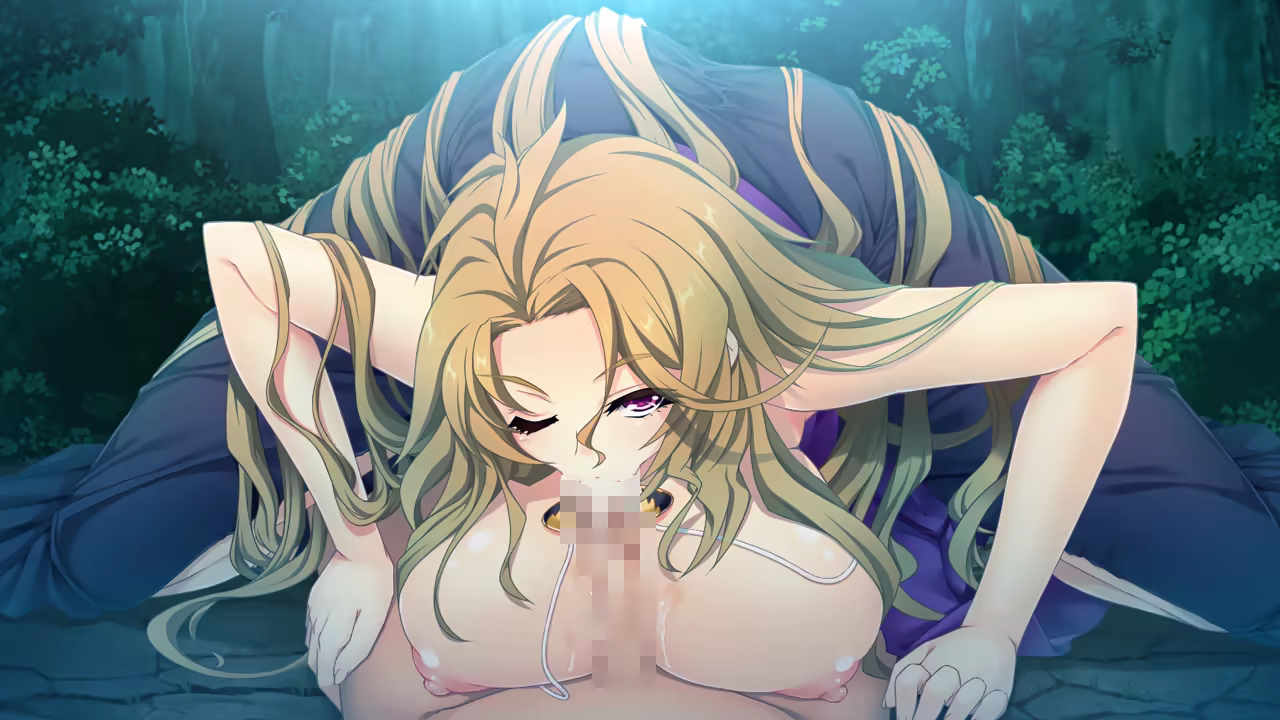
Screenshots




Downloads
Sengoku__Koihime_X-082a46.xgames.zip
Sengoku_Koihime_X.zip.part1-082a46.xgames.rar
Sengoku_Koihime_X.zip.part2-082a46.xgames.rar
Sengoku_Koihime_X.zip.part3-082a46.xgames.rar
Related Games

Holy Nun's Futanari Cleansing [demo] by RFH Games
Description:A futa x female visual novel about a nun helping futanari women deal with their newly acquired genitals and emotional issues. Features full voice acting.The highly skilled nun, Mira, is dispatched by the church to help satiate the needs and desires of a handful of women in the capital, who have recently found themselves with new genitals.Last update: 2026-10-24Released: 2026-10-19Creator (developer): RFH GamesCensored: NoVersion: demoOS: Windows, Mac, Linux, AndroidLanguage: EnglishStore:Other Games:Genre:2D, Adult, Erotic, Female Protagonist, Hentai, NSFW, Porn, Visual Novel, futa, futanari, sexHow to install:1. Extract and run.Changelog:demoinitial zone releaseDeveloper Notes:With an ample chest and hips wide enough to make other women jealous, Mira is one of the most attractive nuns in the capital’s church.Though her warm and caring personality is seemingly ideal for aiding those in need, there may be more hiding beneath the professional exterior.Voiced by KittenVoxShort, chubby, and easily aroused, Sicily is very socially anxious, having been bullied for her looks in the past.Having managed to get into the best university in the country, she finds herself without her family and friends, huddled away in her dorm room.Voiced by IvyWildeInfectiously carefree and a little strange, Kara finds herself suddenly well-endowed with new equipment and curious urges.Then again, who better than a scientist to experiment with this fun new appendage?Voiced by HTHarpyThough scarred, Meline’s well-built figure is enough to make any trainee tremble, should they be unlucky enough to face her in training.Despite what such trainees might claim, she would never truly hurt a student, and cares deeply about the people of the capital, doing her utmost to keep them safe.Voiced by PixieWillowInnkeeper and caring mother, Sophia’s warm, hospitable personality makes her well-loved by all the locals.Though, her immense chest could also be playing a part in that.Voiced by IvyWildeVoiced by PixieWillow50.000+ wordsFull voice acting~50 completely unique NSFW CGs (not including alts)Illustrations and character designs by FrozenArtificeImmersive sound effectsA handful of futanari with a variety of personalities and problemsBonus chats and differing character interactions based on player choiceNSFW tagsCommonfuta x female, creampie, blowjob, vaginal, teasing, virgin futa, excessive cum, belly bulge, ejaculation bulge, cum play, large breasts, overwhelming pleasure, premature ejaculationOccasionalautofellatio, solo female, orgy, anal, condom, bathing, paizuri, futa x futa, accidental groping, handjob, impregnation play, ball massage

I Can't Escape the Yandere Swamp (v1.0) by Studio Neko Kick
Description:You (Seiya) get talked into joining a group date by your part-time job friends. You take a liking to Sasane, who's happy to listen to you vent, and you were supposed to walk her home - but on the spur of the moment, the two of you end up staying at a hotel... Emboldened by the alcohol, you push Sasane down onto the bed and sleep together for that one night.But Sasane is furious that you didn't finish inside her!You begin to feel a strange, unnatural unease - and you escape the scene. That becomes the opening act for the stalking she unleashes on you from then on.Last update: 2026-10-25Released: 2021-09-25Original Title: ヤンデレ沼から抜け出せなくてCreator (developer): Studio Neko Kick (スタジオねこキック)Translator:Censored: Yes (Mosaics)Version: 1.0OS: WindowsLanguage: English ()Store:Other Games:Genre:2DCG, Animated, Censored, Japanese Game, Voiced, Creampie, Female domination, Handjob, Oral Sex, Vaginal sexHow to install:1. Extract and run.Translator Notes:Patch the game with the latest fixes/changes by running GameUpdate in the game folder.

My Unique Reincarnation Skill 'Magical Sword' Makes Every Busty Girl Yield to Orgasm! [final] by ANIM.teamMM
Description:Dying at the peak of VR-induced ecstasy was never part of Kikutaro Sakamoto's life plan. Taking pity on his shameful demise, the goddess Alpharne offers him an isekai do-over, complete with a cheat skill of his choice. The virgin hero immediately picks the [Magical Sword]!One quick "test run" later, the goddess is brought screaming to her knees in pure bliss. Defeated by his holy blade, she agrees to journey alongside him. But reality strikes hard the second they touch down: her divinity completely evaporates, turning her into a literal female pig!Now stuck traveling with an ex-goddess sow, Kikutaro heads for the nearest town—until a commotion in the forest signals that his first real fantasy encounter is about to begin!NOTE: Please ensure that MS PMincho (or any font similar or smaller in size) is selected in the game's in-game Config menu.Last update: 2026-10-24Released: 2025-12-26Original Name: 俺だけ使える転生スキル【マジカルソード】でどんな巨乳もアクメ堕ち! ~俺の股間の聖剣は異世界美女たちをびしょ濡れ昇天へと導いていく~Creator (developer): ANIM.teamMMTranslator:Censored: Yes (Mosaics)Version: FinalOS: WindowsLanguage: English (edited AI-TL)Voice: JapaneseLength: Medium (~16 Hours)VNDB:Store:Other Games:Genre:2DCG, Adventure, Ahegao, Anal Sex, Animated, Big Ass, Big Tits, Blowjob, Bukkake, Censored, Corruption, Creampie, Exhibitionism, Fantasy, Groping, Group Sex, Handjob, Harem, Humiliation, Humor, Japanese Game, Lactation, Male Domination, Male Protagonist, Masturbation, Milf, Monster, Multiple Endings, Multiple Penetration, Oral Sex, Pregnancy, Prostitution, Rape, Romance, Sex Toys, Sexual Harassment, Sleep Sex, Spanking, Stripping, Teasing, Tentacles, Titfuck, Vaginal sex, Virgin, Voiced, VoyeurismHow to install:1. Extract and run.Translator Notes:You can so that i can continue doing this as a hobby.The UI is fully translated.Required: Patch the game with the latest fixes/changes by running (because of this feature this game may be getting false flagged for malware by chrome for some users.)